In sensitivity analysis, we often talk about “inputs” and “outputs” and it’s worth taking some time to define them.
An Input is one of the assumptions of your model. In statistics jargon, it is an “independent variable.” For example, in a financial forecasting model, it might be the prevailing interest rate for the upcoming quarter. You don’t know for sure what that interest rate will be, but you’ve made your best projection for it in the model.
An Output is one of the results of your model. The statistical term is a “dependent variable.” For example, in our hypothetical financial forecast, the profit for the upcoming quarter would be an output.
At an extremely high level, you could think your model’s primary purpose is to take the inputs, combine them with other parts of your model, in order to generate the output values.
Defining Inputs and Outputs in Sensitivity Explorer
When you perform any analysis, generate any report, or create an Excel Data Table you always start by selecting the inputs and outputs using a standard interface.
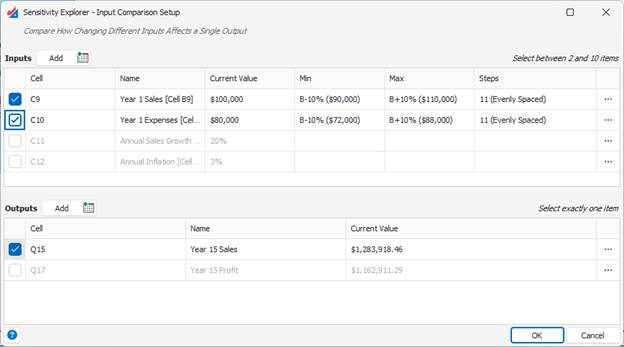
The first time you use Sensitivity Explorer with a workbook the list of inputs and outputs will be empty. Click the Add button to select the cells you want to use. Once an item has been added to the list and used in an analysis, the product will remember it for future analyses.
Editing Input and Output Parameters
By default, input and output cells will be labeled in result graphs and tables using their Excel address (e.g. Sheet1!A5) unless you have specified an Excel defined name for that cell, in which case that will be used. However, you may want to override this behavior by specifying an alternate name. This is easily accomplished by clicking the drop-down control in the Name column. See the article Input/Output Name Popup Editor for more information.
By default, new Inputs in Sensitivity Explorer are configured to be varied across a range of values centered on the current value of the cell (also called the “base-value”)
- For numeric values: plus or minus 10% around the current value in the cell.
- For date values: plus or minus 10 days around the current date in the cell.
In both cases, the product defaults to calculating 11 “steps” across this range. The base-value itself counts as one step, and five steps to the left and right of this central value. (These defaults can all be changed globally. See the Product Settings for more information.)
To change these parameters for any input, click the drop-down controls for the Min, Max, and Steps columns. Set the articles Input Minimum/Maximum Popup Editor and Input Steps Popup Editor for more information.
Removing an Input or Output
If you no longer what to see a particular input or output cell in the list, click the “three-dots” actions button to the right of its entry. The input or output will then be “forgotten” from the Sensitivity Explorer interface.
Was this article helpful?
That’s Great!
Thank you for your feedback
Sorry! We couldn't be helpful
Thank you for your feedback
Feedback sent
We appreciate your effort and will try to fix the article